
Command bar overview
The command bar adapts to the current document view. Workspace and AI Assistant remain available across views, while Reader and Editor controls appear beside the document surface they affect.
In Split view, Editor controls sit beside the Markdown source pane and Reader controls sit beside the rendered preview. If you move the editor to the other side, both command groups move with their panes.
Workspace and AI Assistant
These controls remain available across Reader, Editor, and Split views.
1. Workspace
Workspace is the central place for file and workspace actions. Depending on the current document, it can include:
- Create a new Markdown document.
- Open an existing file.
- Enter or leave Markdown editing.
- Save a copy with Save As.
- Export the rendered document to PDF.
- Reopen recent files.
- Turn Live Monitoring on or off and review its current status.
- Enable synchronized scrolling between the Editor and Reader.
- Move the Editor between the left and right sides of Split view.
- Open Telescopo Settings.
Some commands only appear when they apply to the current file.
2. AI Assistant
AI Assistant opens a private conversation about the current document. On supported Macs, you can:
- Ask questions about the open document.
- Summarize its contents.
- Explain technical or unfamiliar sections.
- Extract important points and ask follow-up questions.
Conversations remain associated with each document while Telescopo is running. AI Assistant requires macOS 26 or later, a supported Mac, and Apple Intelligence enabled.
Document contents are not sent to a Telescopo server for AI Assistant processing.
Editor controls
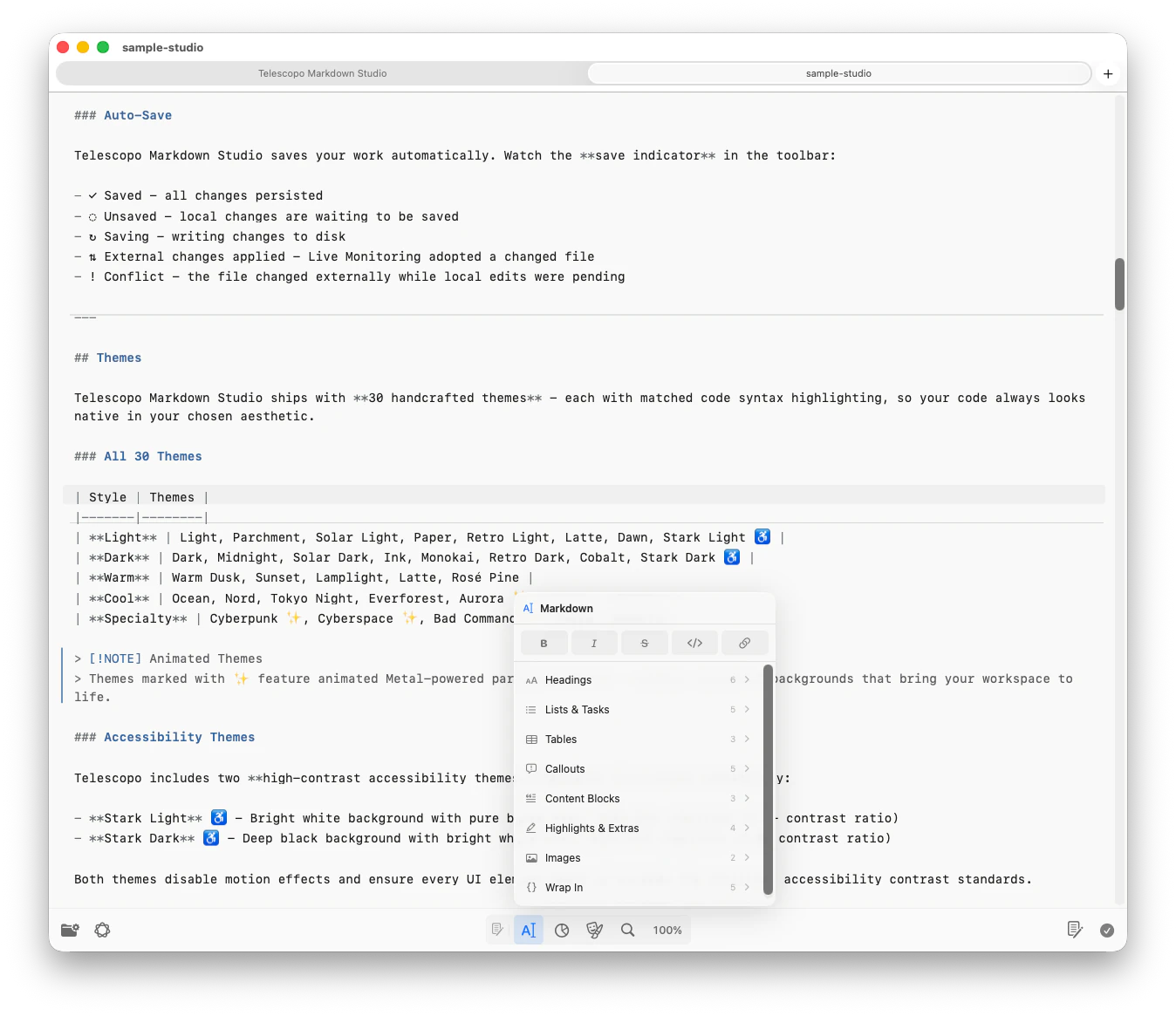
Editor controls appear in Editor and Split views. They affect Markdown source without changing Reader presentation controls.
3. Editor tools indicator
The small Editor symbol is a visual label rather than a button. In Split view, it identifies the command group associated with the Markdown source pane.
4. Markdown tools
Markdown opens insertion and formatting commands. The first row provides Bold, Italic, Strikethrough, Inline Code, and Link actions.
Additional categories provide:
- Headings from level 1 through level 6.
- Bulleted, numbered, nested, task, and checklist lists.
- Two-column, three-column, and aligned tables.
- Note, Tip, Warning, Important, and Caution callouts.
- Code blocks, blockquotes, and section dividers.
- Highlights, footnotes, and table-of-contents scaffolding.
- Local and remote images.
- Bracket, parenthesis, brace, and quotation-mark wrapping.
Formatting commands wrap selected text when possible. Insert commands place editable Markdown at the current cursor position.
5. Diagrams & Math
Diagrams & Math provides complete editable examples for technical content.
Mermaid templates cover more than two dozen diagram types: flowcharts; sequence, state, journey, and timeline diagrams; class, entity relationship, requirement, and Git graphs; five C4 architecture views; Gantt charts, Kanban boards, event modeling, mindmaps, pie, donut, and quadrant charts; plus block, Ishikawa, packet, Sankey, treemap, and XY diagrams.
Most templates use a mermaid fence. ZenUML uses a dedicated zenuml fence for code-shaped sequence diagrams with calls, replies, nesting, loops, alternatives, optional and parallel fragments, and error-handling flows. Donut charts use configured Mermaid pie rendering.
LaTeX templates include inline math, block equations, aligned equations, matrices, piecewise functions, fractions, summations, and integrals.
The rendered result appears in Reader as soon as the example is inserted.
6. Editor Theme
Editor Theme controls the appearance of Markdown source. You can:
- Match the complete Reader theme.
- Match only the Reader light or dark appearance while keeping a neutral editing theme.
- Choose a separate theme for the Editor.
- Open the complete Editor Settings.
Changing Editor Theme does not have to change the rendered document's Reader theme.
7. Editor Search & Replace
Editor Search & Replace searches Markdown source. It provides:
- Source-text search.
- Current-match and total-match counts.
- Previous- and next-match controls.
- Case-sensitive search.
- An expandable replacement field.
- Replace Current and Replace All commands.
Because it searches source, it can find heading markers, links, code fences, and Mermaid syntax that may not appear literally in Reader.
8. Editor Zoom
Editor Zoom displays the current source magnification. Use minus and plus to adjust it, or double-click the percentage to reset it to 100%.
Editor Zoom affects Markdown source only. Reader magnification is controlled separately.
Reader controls
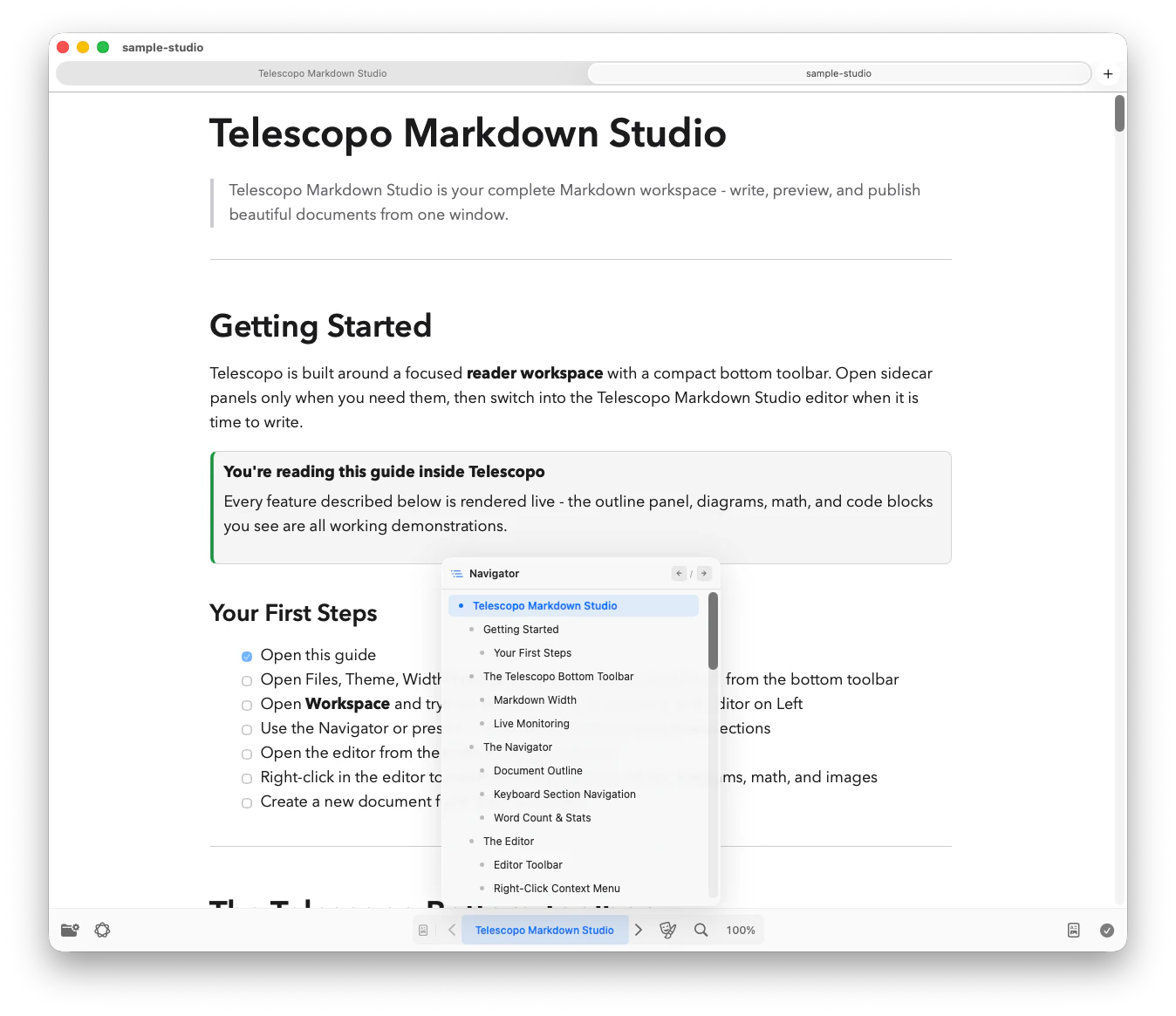
Reader controls affect rendered Markdown. They appear in Reader and Split views.
9. Reader tools indicator
The small document symbol is a visual label rather than a button. In Split view, it identifies the command group associated with the rendered Reader pane.
10. Navigator
Navigator opens a live outline generated from the document's headings and structure. Use it to:
- See how a long document is organized.
- Identify the section currently visible in Reader.
- Jump directly to another heading.
- Move between sections without manually scrolling.
The active section remains highlighted while you read. When Reader view is active, Navigator expands to show the previous section, current section title, and next section directly in the command bar.
11. Reader Theme
Reader Theme controls the rendered document. You can:
- Match the application light or dark appearance.
- Choose a specific Reader theme.
- Browse light, dark, contrast, specialty, and animated themes.
- Open the complete Reader Settings.
Reader Theme also provides the styling used by theme-aware PDF exports. It can be configured independently from Editor Theme.
12. Reader Search
Reader Search searches visible rendered content. It provides highlighted results, match counts, previous and next controls, and case-sensitive search.
Press Return or use the down control for the next result. Use the up control for the previous result. To find Markdown syntax or replace text, use Editor Search & Replace.
13. Reader Zoom & Width
Reader Zoom & Width controls rendered-document scale and layout.
Width presets include Compact, Standard, Wide, Extra Wide, 3/4 Width, and Full Width. Use minus and plus to change Reader magnification, or double-click the percentage to reset it to 100%.
These controls affect Reader only. They do not change the Markdown source or Editor text size.
View and document controls
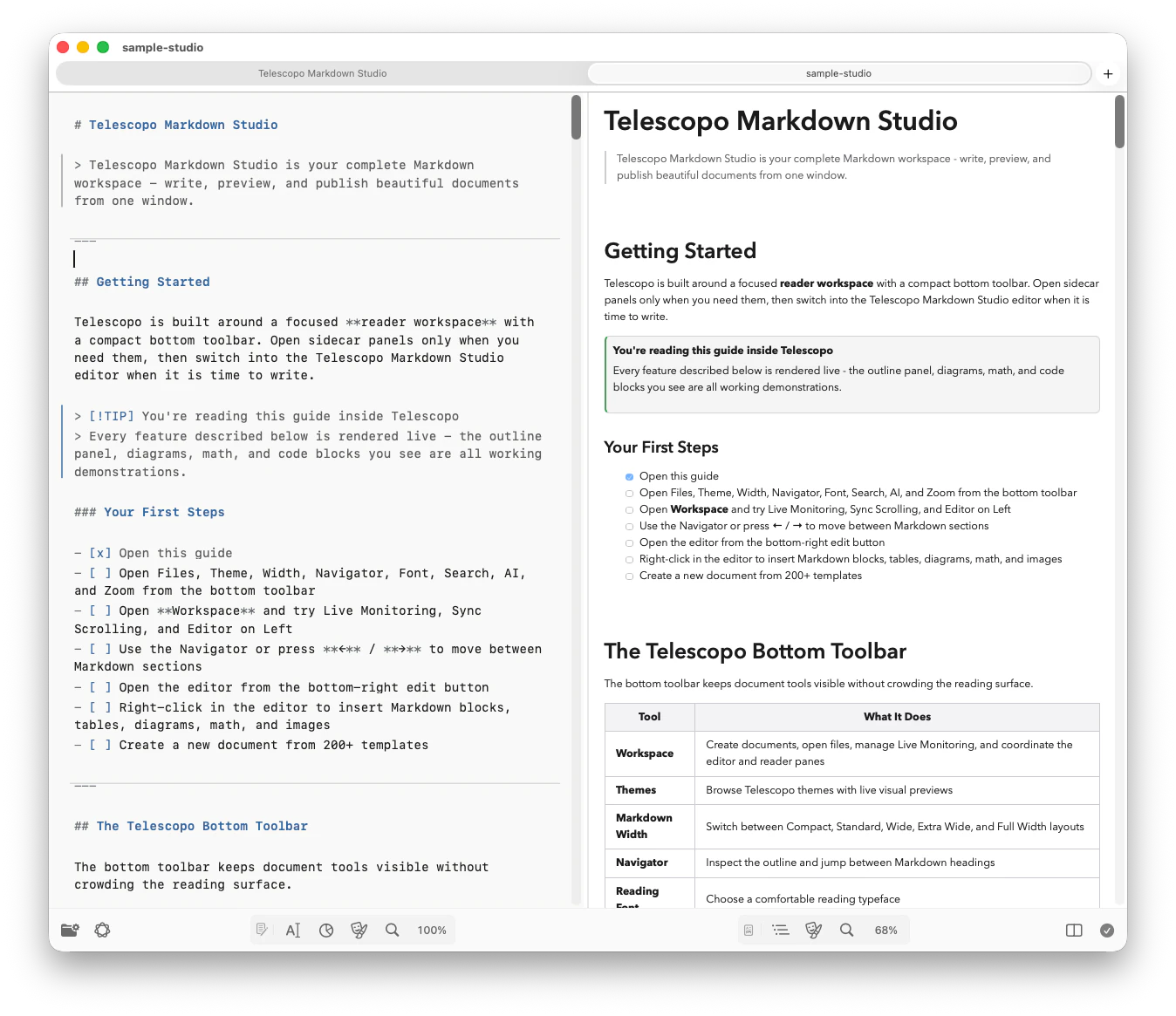
The controls at the far right change the document surface and report its current state.
14. Document View
Document View opens the adaptive view selector. The icon reflects the active view:
- Reader Only dedicates the workspace to the rendered document and expands Reader navigation.
- Focused Editor dedicates the workspace to Markdown source editing.
- Split Editor and Reader places Markdown source and rendered preview side by side.
Changing views preserves the document and moves the relevant command groups with their panes.
15. Document Status and Save
Document Status reports the current save or synchronization state:
- Checkmark: The document is saved and current.
- Dashed circle: The Editor contains unsaved changes.
- Rotating arrows: Telescopo is saving.
- Saved: A save has completed.
- Updated: External changes were received and applied.
- Conflict: The file changed externally while local edits were pending.
When unsaved changes are present, select this control to save. Remote or noneditable documents can show status, but this control saves editable local Markdown files only.
Keyboard shortcuts
These shortcuts follow the active document view:
⌘Fsearches rendered content in Reader and Markdown source in Editor or Split.⌘⌥Fopens Editor Search & Replace.⌘/opens Markdown insertion commands at the caret.⌘Bapplies bold formatting.⌘Iapplies italic formatting.⌘Kinserts a link.⌘⇧Tinserts a table.⌘⇧Minserts a Mermaid flowchart.⌘⇧Linserts a LaTeX block equation.⌘⌥Iinserts image syntax.⌘−,⌘+, and⌘0control zoom for the active document surface.
Default document view
Open Settings > Default Document View to choose how editable local Markdown files open. You can still switch between Reader, Editor, and Split at any time.