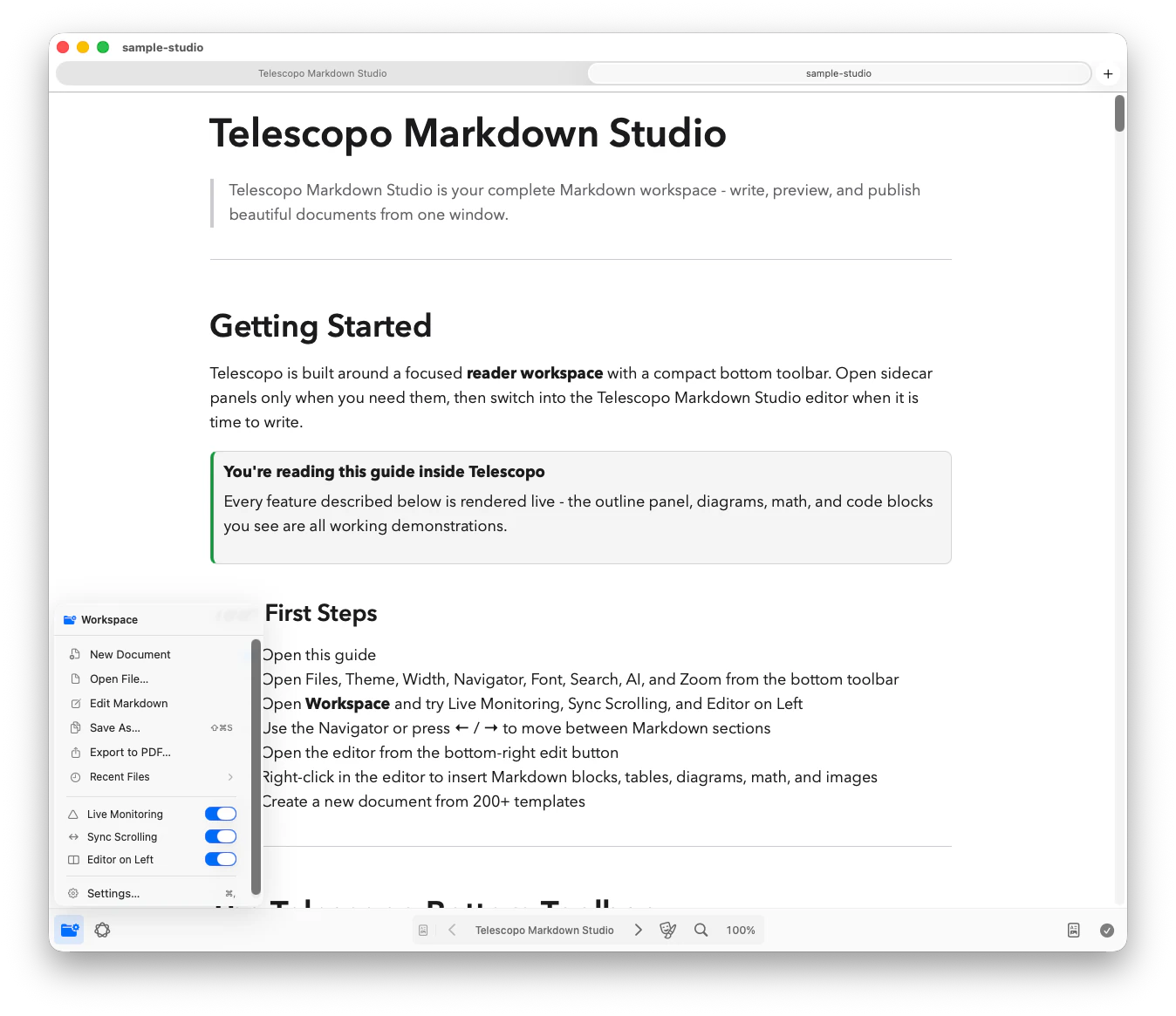
What is Telescopo?
Telescopo Markdown Studio is a native macOS app for reading, creating, editing, previewing, navigating, and exporting Markdown documents.
Telescopo is available from the Mac App Store with a 7-day trial of the complete Markdown Studio workspace.
What does the 7-day trial include?
The trial includes complete Telescopo Markdown Studio access for seven days.
Trial access includes:
- Split-view Markdown editing with live preview.
- Reader, Editor, and Split views.
- 200+ Markdown templates.
- Live Monitoring for externally changed Markdown files.
- Quick Section Navigator.
- Private AI Assistant on supported Macs.
- Markdown to PDF export with layout preview.
- 30+ handcrafted reading themes.
- Rich insert tools for Mermaid diagrams, LaTeX math, tables, callouts, and Markdown blocks.
- Continued standalone viewing support for code files and SVG.
- Legacy preview support for PDF, EPUB, and standalone LaTeX files, deprecated as of v7.0.0.
What happens when the trial ends?
When the 7-day trial ends, Telescopo Markdown Studio access becomes locked until you unlock Lifetime Access with a one-time $49.99 purchase.
Your Markdown files remain unchanged on your Mac. The purchase is completed through the Mac App Store purchase sheet.
Previous Telescopo purchases continue to include Lifetime Access.
How do I unlock Telescopo Markdown Studio?
To continue after the trial or unlock Telescopo Markdown Studio:
- Open Telescopo.
- Open an upgrade prompt from the app menu, Settings, or a locked Telescopo feature.
- Click the unlock button.
- Complete the Mac App Store purchase sheet.
- After the transaction is verified, Telescopo unlocks the full workspace.
After purchase, Telescopo Markdown Studio features should become available automatically. If they do not, quit and reopen Telescopo, then use Restore Purchase.
How do I restore my Telescopo Markdown Studio purchase?
Use restore when you already purchased Telescopo Markdown Studio but the full workspace is not currently unlocked.
To restore:
- Open Telescopo.
- Open Settings.
- Select Telescopo.
- Click Restore Purchase.
- Sign in with the Apple ID that originally purchased Telescopo Markdown Studio if macOS asks.
You can also restore from the unlock window.
If restore does not find the purchase, confirm that:
- You are signed into the same Apple ID that purchased the upgrade.
- The purchase completed successfully in the Mac App Store.
- The Mac has an internet connection.
- You are using the Mac App Store version of Telescopo.
I previously bought Telescopo. Do I get Telescopo Markdown Studio?
Yes. Previous Telescopo purchases continue to include Lifetime Access.
If you believe you previously purchased Telescopo but Telescopo Markdown Studio is not unlocked:
- Open Settings > Telescopo.
- Click Restore Purchase.
- Make sure you are signed into the Apple ID used for the original purchase.
- Restart Telescopo.
If the issue continues, contact support and include the app version, macOS version, and whether the purchase appears in your Apple purchase history.
How do I open Markdown files in Telescopo?
You can open Markdown files several ways:
- Click Open File on the welcome screen.
- Choose File > Open File.
- Drag a Markdown file onto Telescopo.
- Use Open With > Telescopo in Finder.
- Use recent files from the welcome screen or Workspace.
- Open local Markdown links from inside a Markdown document.
Workspace brings document creation, Open File, recent files, Live Monitoring, PDF export, and Settings into one panel in the command bar.
How do I create a new Markdown document?
Creating new documents is included with Telescopo Markdown Studio.
To create a new document:
- Open Telescopo Markdown Studio.
- Click New Document on the welcome screen, or open Workspace from the command bar.
- Choose a blank document or one of the included Markdown templates.
- Pick a save location.
- Start writing in the Telescopo editor.
Telescopo Markdown Studio includes 200+ templates across planning, product work, engineering docs, finance, education, writing, meetings, and more.
How do I set Telescopo as the default app for Markdown files?
To set Telescopo as the default app for .md or .markdown files:
- In Finder, select a Markdown file.
- Choose File > Get Info.
- In Open with, select Telescopo.
- Click Change All.
- Confirm the change.
After this, double-clicking Markdown files should open them in Telescopo.
The first-run onboarding can also offer to make Telescopo the default app for Markdown files. You remain in control of this choice and can change it later in Finder.
How do I choose the default document view?
Open Settings, then choose Default Document View to control how editable local Markdown files open.
- Reader opens the rendered document for focused reading.
- Editor opens the Markdown source for focused writing.
- Split opens source and rendered preview together.
You can change the active document between Reader, Editor, and Split at any time using the document-view control in the center of the command bar.
What Markdown file extensions does Telescopo support?
Telescopo is focused on Markdown files, including common Markdown extensions such as:
.md.markdown.mdown.mkd.mdwn
Some Markdown-like files may still open as plaintext or code depending on their extension and content. For the best experience, use .md or .markdown.
How do local Markdown links work?
Telescopo supports local Markdown links and wiki-style links for neighboring Markdown files.
Examples:
[Project Notes](project-notes.md)
[[project-notes.md]]
[[Project Notes]]
When the target can be resolved safely, Telescopo opens the linked Markdown document in a new tab.
For best results:
- Keep linked Markdown files in the same folder or a folder Telescopo has permission to access.
- Include the file extension when possible, such as
[[project-notes.md]]. - Use normal relative links for nested folders, such as
[Plan](docs/plan.md).
Why does macOS say Telescopo does not have permission to open a linked file?
Telescopo is a sandboxed Mac App Store app. macOS only lets sandboxed apps access files that the user has selected or previously granted access to.
If a Markdown file links to a neighboring file that Telescopo has not been allowed to access, macOS may block the open request and show a permission message.
To fix this:
- Open the linked file manually once using Open File.
- Or open the folder/project in a way that grants Telescopo access to the neighboring files.
- Then try the Markdown link again.
This behavior comes from macOS privacy and sandboxing rules. Telescopo avoids bypassing those rules so local documents remain under user control.
What changed in Telescopo 7.0?
Telescopo 7.0 is a major Markdown release.
Highlights include:
- Reader, Editor, and Split views in one Telescopo Markdown Studio workspace.
- Split-view Markdown editing with live preview.
- 200+ Markdown templates.
- Live Monitoring.
- Telescopo Navigator.
- AI Assistant on supported Macs.
- Richer Mermaid and LaTeX rendering.
- Mermaid diagram magnification.
- Local Markdown links and wiki-style links.
- Reading width controls.
- Contrast Light and Contrast Dark themes.
- Introduced an adaptive command bar, redesigned onboarding, and clearer workspace controls.
- Continued Telescopo access for existing paid Telescopo customers.
What preview formats are deprecated in Telescopo 7.0?
Telescopo 7.0 is focused on Markdown as the primary supported path.
As of v7.0.0, standalone LaTeX and MathJax-style .tex file preview support is deprecated in favor of KaTeX-style TeX syntax inside Markdown. Native EPUB preview support and native PDF preview support are also deprecated.
These legacy preview paths may be removed in a future version to reduce code complexity and keep Telescopo focused on its strongest Markdown workflows.
Markdown-to-PDF export is not deprecated. Exporting rendered Markdown to PDF remains a core Telescopo Markdown Studio feature.
Standalone SVG viewing and code viewing remain supported. However, Markdown is the primary future path for rich SVG diagrams, images, and code syntax inside Telescopo documents.