Included in Telescopo Markdown Studio: reading width adjustment and global font selection work alongside editing, export, AI Assistant, templates, and Navigator. Try the complete workspace during the 7-day trial.
Why Fixed-Width Code Viewers Fail on Large Displays
Most code viewer apps apply a fixed maximum content width. On a 13-inch MacBook this works reasonably well. On a 27-inch 5K display or an ultrawide monitor, a fixed-width document sits in the center of a vast empty canvas, forcing your eyes to travel to the same narrow column while large portions of your expensive display go unused.
The opposite problem is just as real: an app that stretches code to fill the full width of a wide monitor produces extremely long lines that are harder to read and track. Research on reading ergonomics consistently shows that line lengths between 60 and 90 characters are most comfortable for sustained reading, but the optimal measure depends on font size, display resolution, and viewing distance. No fixed value works for everyone across every setup.
Reading Width Control
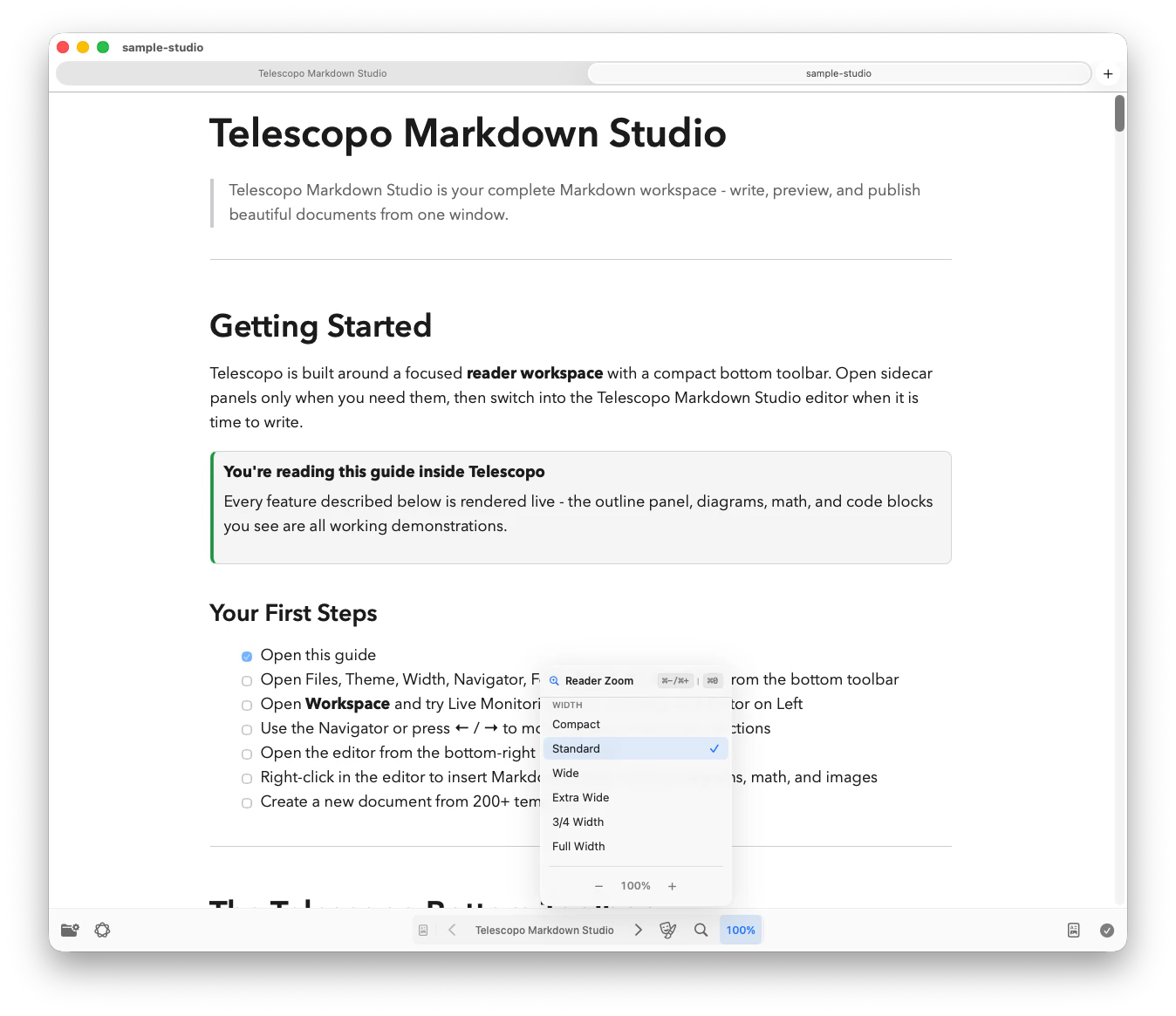
Telescopo solves this with reading width controls that let you widen the content column for large tables or narrow it for sustained prose reading. The point is not to force one ideal measure. It is to make the current file comfortable on the current display.
Width adjustment applies to Markdown, code, and other readable text formats. It helps AI-generated reports, long specs, wide tables, and dense source files stay legible without horizontal scanning or awkward wrapping.
Global Font Selection
Width adjustment works together with global font selection. You can use a preferred coding font, a reading font, or an accessible font installed on your Mac. That includes dyslexic-friendly fonts and other typography choices that make long documents easier to read.
For developers who frequently switch between a laptop display and an external monitor, this matters in practice. The layout that works on the laptop looks awkward on the studio display. Instead of accepting the compromise, you adjust both parameters in a few seconds and resume reading with a comfortable layout on whichever screen is active.
Related: Dark Mode and Custom Themes for Reading Code and Markdown on Mac. Pair width and font adjustments with the right theme for complete reading ergonomics.
Related: Accessible Markdown Writing on Mac covers macOS Increase Contrast, Light and Dark Appearance, and dynamic font selection.
Useful for Markdown as Well as Code
The dynamic width and font controls apply to every format Telescopo opens, not only source code. When reading a long Markdown document, you might prefer a narrower column to keep line lengths in the comfortable reading range. When reviewing a data table embedded in Markdown, you might expand the width to see all columns without horizontal scrolling. The same gesture handles both cases.
Related: Telescopo Navigator for Large Markdown Files. Reading width plus Navigator makes large documents comfortable on any screen.
A Note on Long Lines in Wide Files
Some generated code files, minified scripts, or data serialization formats like JSON and CSV contain very long lines by design. Viewing these in a narrow column forces constant horizontal scrolling. In Telescopo, expanding the content width to match the line length lets you read across the full line without scrolling, while the syntax highlighting keeps structure legible even at high zoom levels.
Frequently Asked Questions
How do I adjust content width in Telescopo on Mac?
Use Telescopo's reading width controls to choose a comfortable document width for the current display. Width adjustment is included in Telescopo Markdown Studio.
Can I change the font size in Telescopo?
Yes. Telescopo supports global font selection across versions, including accessible fonts installed on your Mac.