
Help topics
Find searches one open note. Library search helps you locate files. Navigator’s heading search moves through the structure of a note.
Open Find
- Open a note and select the magnifying glass in its bottom toolbar, or press ⌘F.
- Type the text you want to find. Find appears above the core toolbar on Mac, iPhone and iPad.
- Use the arrows to move between results. ⌘G finds the next match; ⇧⌘G finds the previous one. Return also advances the search.
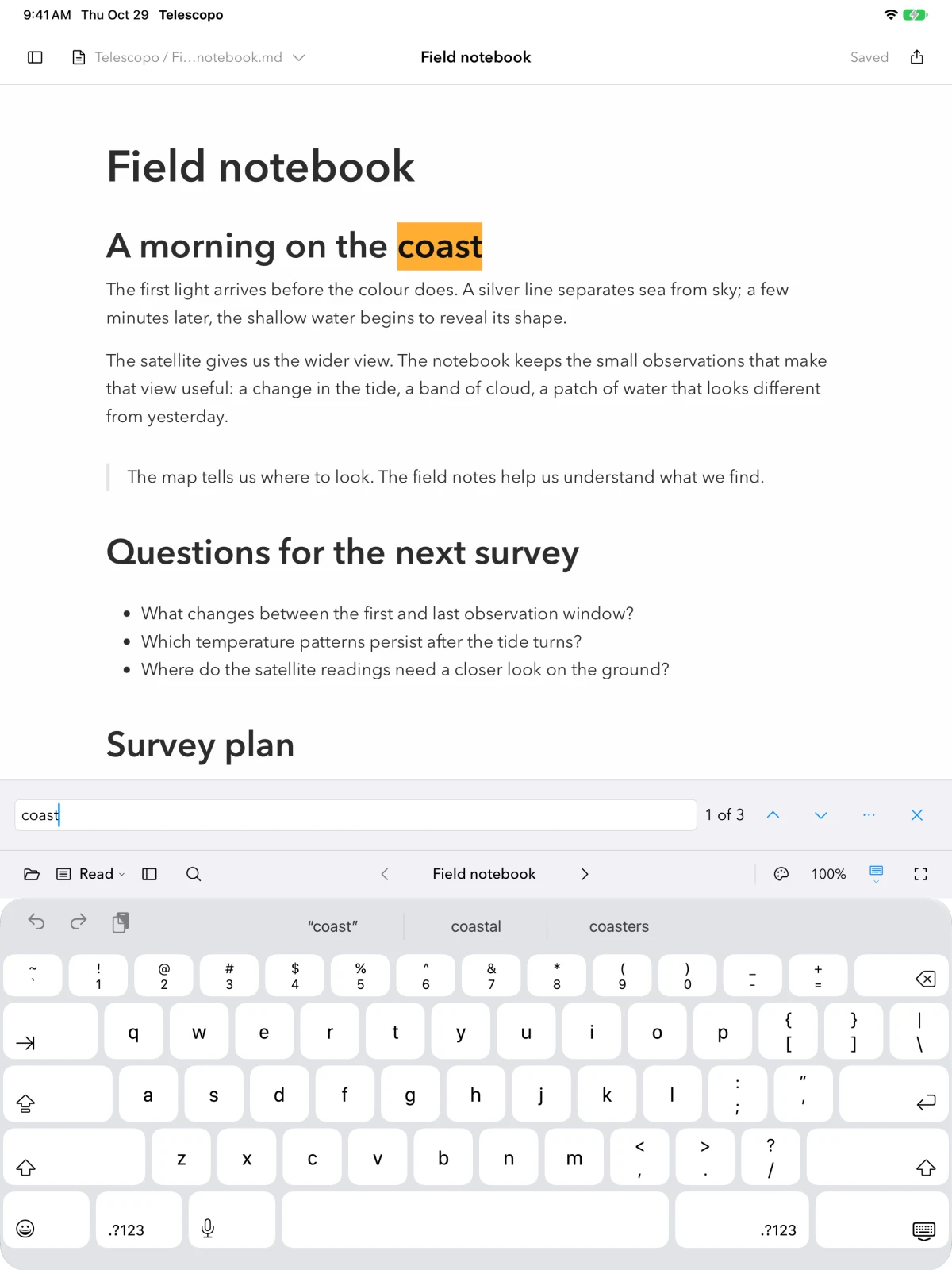
Choose Editor or Reader in Split
In Split, use Find’s target control to choose Editor or Reader. Editor searches the source being edited; Reader searches the rendered text. Markdown punctuation, hidden link destinations and diagram source can therefore produce different results. To find a literal Markdown marker or URL, choose Editor.
Use Match Case when capitalization matters. A zero-result search is a reason to check the target and case setting before changing the query.
Replace in the editor
- Switch to Edit or Split. Editing your own files requires access.
- Choose the Editor target, then reveal Replace in the Find controls, or use ⌥⌘F.
- Enter the replacement text. Inspect a match and replace one occurrence first.
- Use Replace All only after checking the query and scope. Review the result; Undo can reverse the edit.
Reader is a rendered view, so replacement belongs to the editor. If a search appears in a code block, link or equation, check its surrounding syntax after replacement.
What happens to formatting controls?
Find uses the row immediately above the main command bar. When formatting is open, Find temporarily occupies that row. Closing Find restores the earlier formatting strip; choosing Format closes Find. The document does not need two competing accessory rows.
Search beyond the current note
| I want to… | Use |
|---|---|
| Locate a file in the current location | Library search |
| Look across connected library locations | Search All Files |
| Jump to a loaded title or path | Quick Open, ⌘K |
| Jump to a heading in this note | Navigator → Outline → Search headings |
| Find or replace a phrase in this note | Find, ⌘F; Find and Replace, ⌥⌘F |
Library filters can narrow results by content type or date. Optional image and PDF search must be enabled before expecting those files’ content in results.
Still need help? Contact support with your device, app version and the steps that led to the problem.
The app’s Help & Shortcuts includes guidance for the device you are using.